Inspect Results
When your job has finished, it will automatically move from the monitoring to the results tab. To inspect data, you can either use our visualization tools for all major job types (MotionCor, CTF Find, particl picking, 2D classification, 3D classification), or download files to inspect them on your local hardware (e.g. in UCSF Chimera).
Inspecting 2D classification results
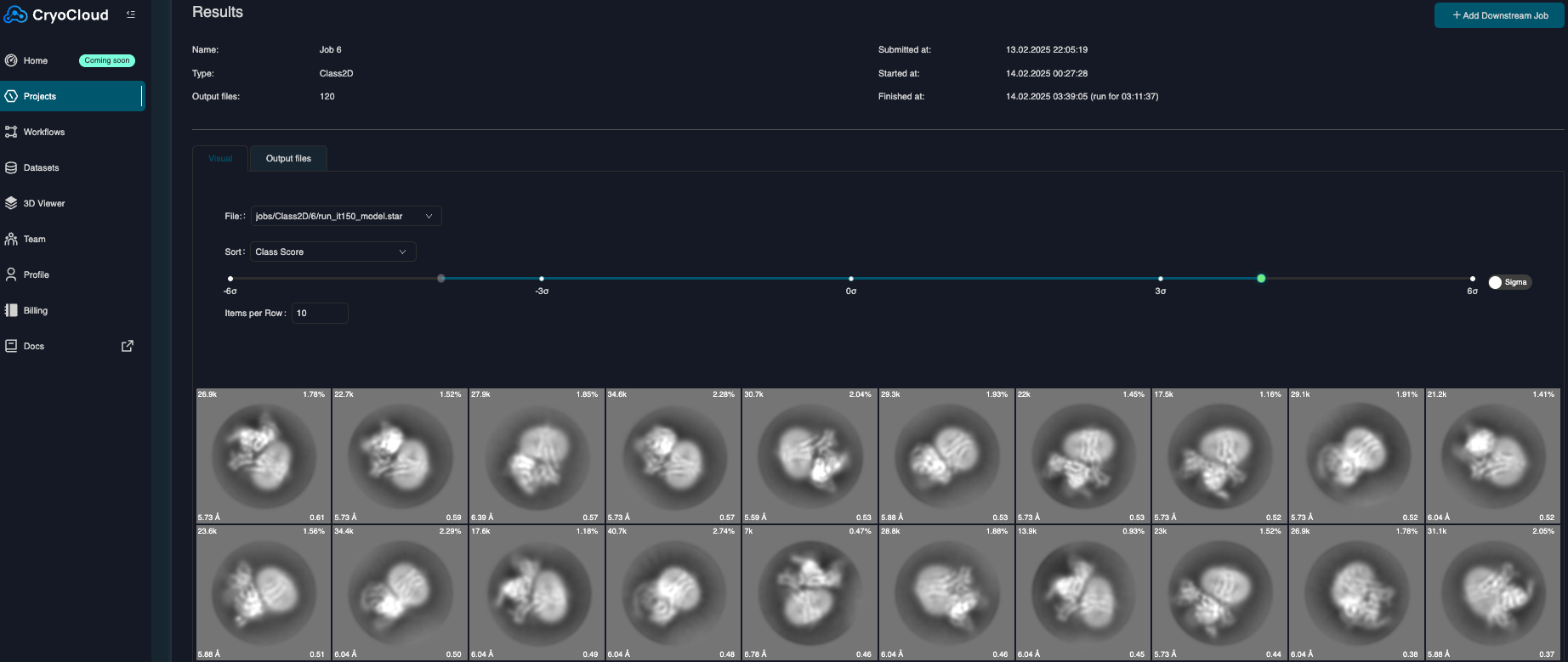
On the “Visual” tab of the results page, the .star file from the last iteration will be selected by default, and class averages will be loaded within a few seconds (loading times might be longer depending on the box size, the number of classes and your internet speed).
Once classes are loaded, you can adjust the contrast on-the-fly using the slider at the top. Along with each class average, the particle number, percentage distribution, resolution estimate, and RELION class ranker score are also shown. Classes can be sorted by these metrics (and more) by using the dropdown menu next to “Sort”.
Inspecting 3D classification results
The results page for 3D classification displays a projection of the 3D volume of each class. Again, the final iteration is loaded by default. Hovering over each class provides the readout on distribution and estimated resolution.
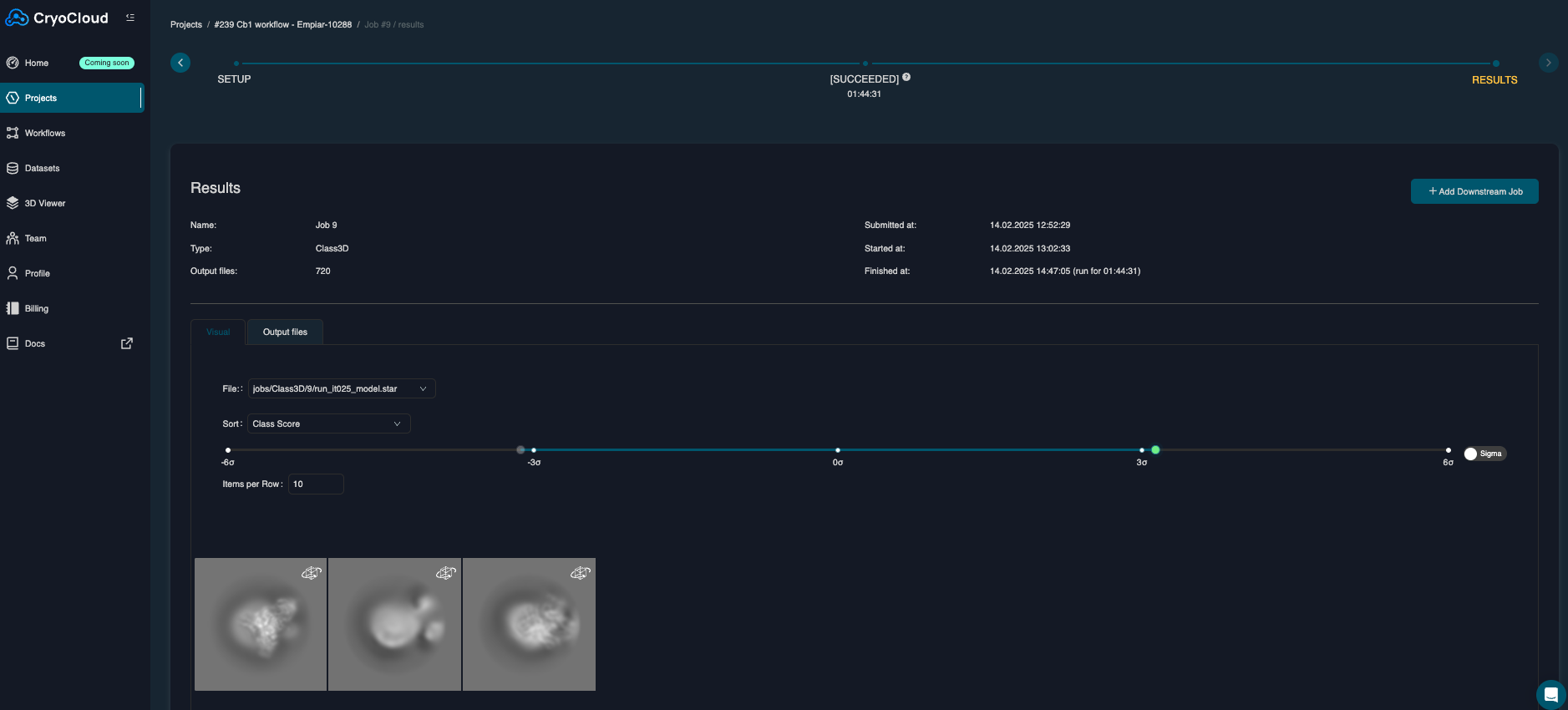
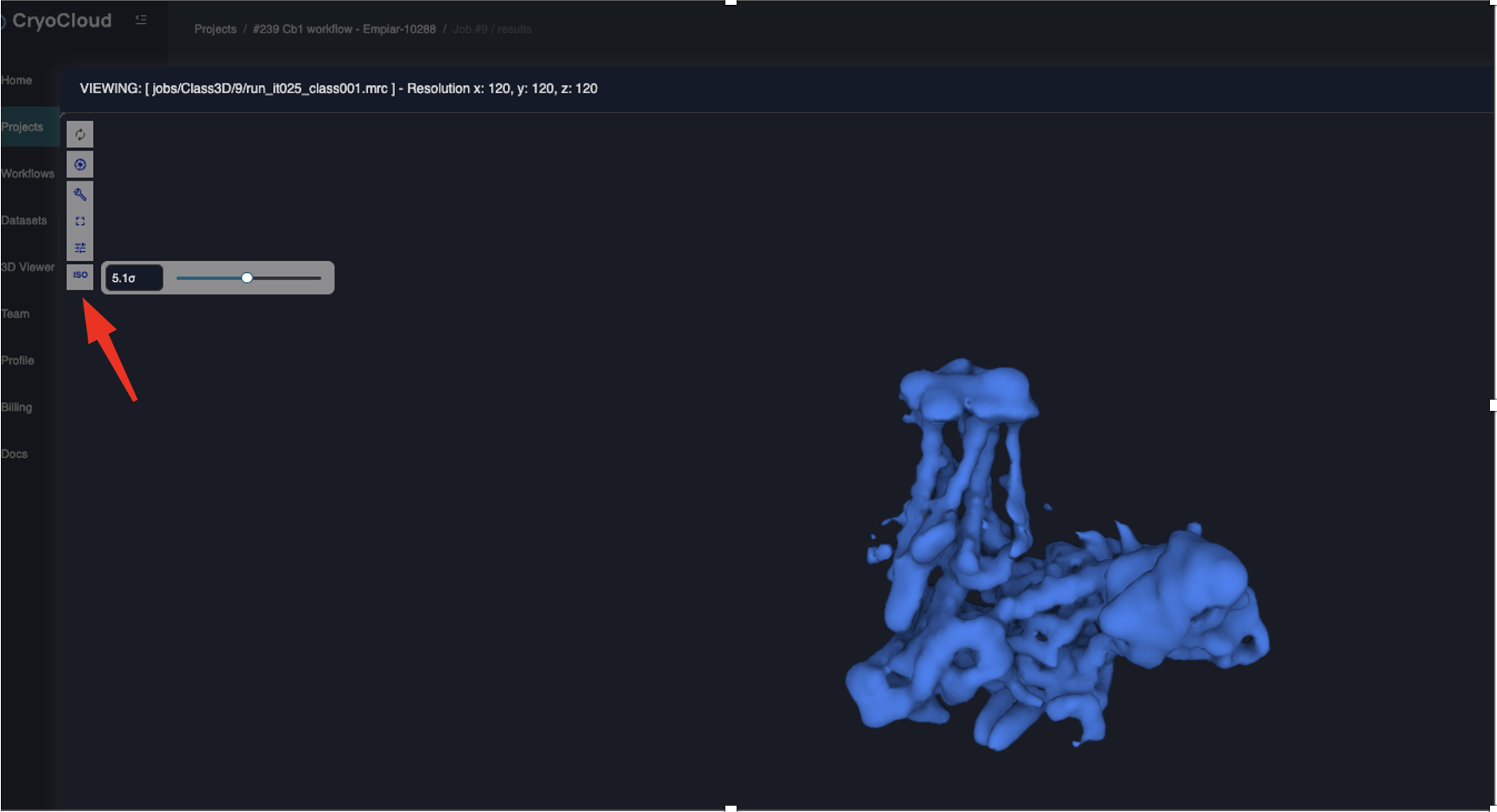
You are also able to visualize the 3D volume in the app by clicking the icon in the top right corner of a class average. Thresholding is available by clicking the iso button on the left side of the screen within the viewer (red arrow).
Downloading results
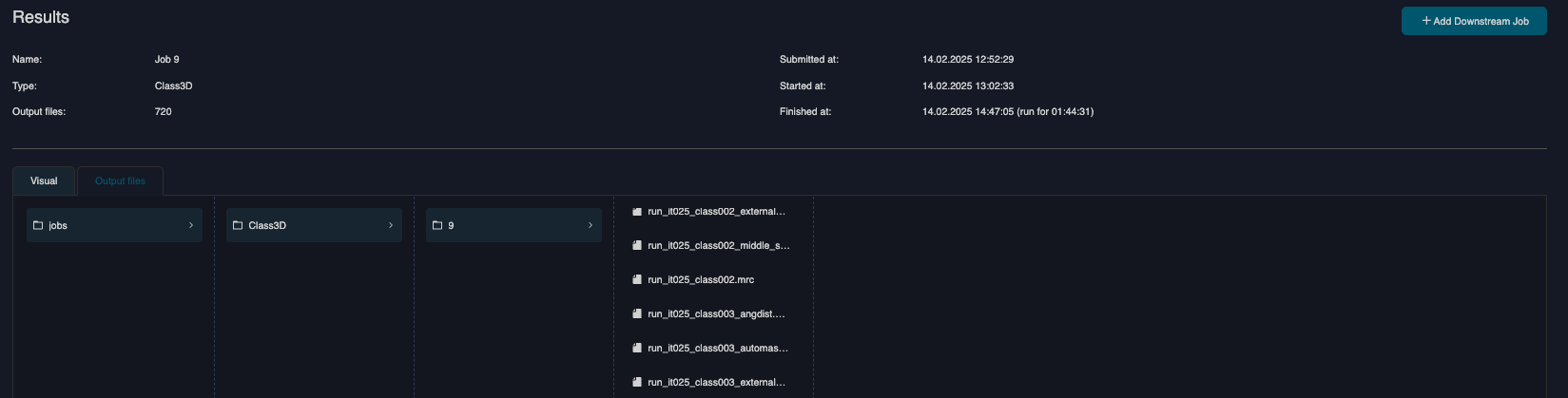
Within the results tab, navigate to "Output Files" which will contain all the files that were created by this job. Browse through the sub-folders, and click on a file to initiate its download within your browser.